





Melbet payment methods
Quick answer about deposits and withdrawals
In Melbet, deposits and withdrawals happen in the cashier section inside your account. The cashier displays which payment options work for your account and transaction type currently. What’s available changes based on account status, verification level, technical routing, provider limits. For most accurate info on your account – fees, limits, timing, eligibility – check cashier screens and terms shown there.

| Entity | Value |
| Brand | Melbet |
| Primary domain identifier | Official Melbet website (domain not stated in this page; see account area) |
| Operator | Pelican Entertainment B.V. |
| Company number | 134359 |
| Licensing authority | Curaçao Gaming Authority |
| Licence number | OGL/2024/561/0554 |
| Licence status | Active |
| Licence grant date | 15 November 2024 |
| Support channels | Email: [email protected]; [email protected]; [email protected]. Phone: +44 2038077601. Other channels: see account area |
These identifiers can be useful when escalating payment issues to support, especially if you need to reference account-level or compliance-related checks.
Payment methods
Melbet does not have a universal, public list of payment options that applies to every user. The only reliable source for what you can use is the cashier/account area, where deposit and withdrawal methods are presented based on your account configuration. If you do not see a method category you expected, treat it as unavailable for your account at that moment and verify directly in the cashier.
Deposit methods
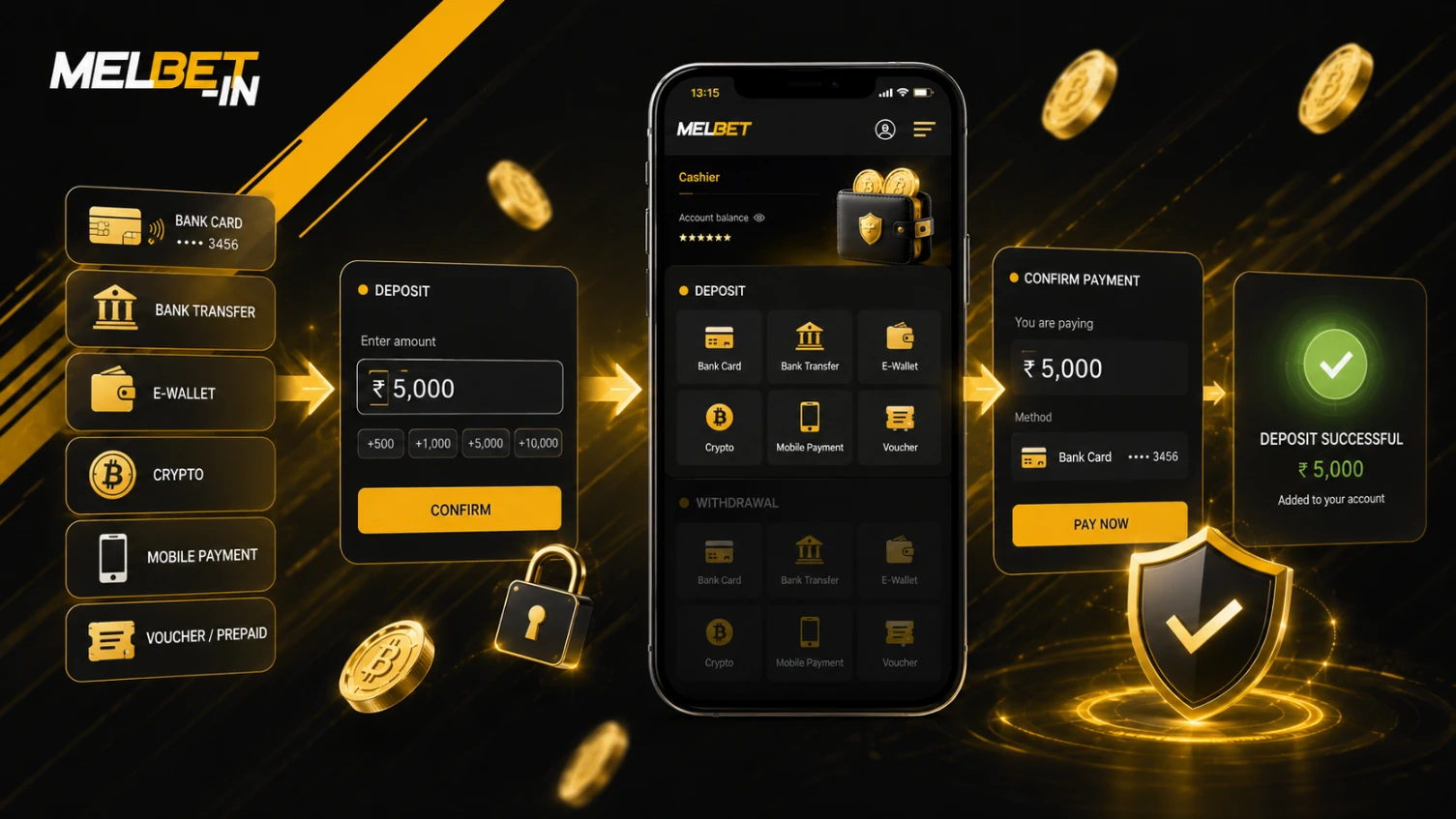
Deposit categories like card-based, transfers, wallets, or crypto may show in the cashier depending on your account. Specific providers, currencies, routing details vary by account and appear during the cashier process. If a deposit needs extra steps such as provider login or wallet confirmation, those display during checkout.
Withdrawal methods
Withdrawals are restricted to methods eligible for payouts under the cashier rules shown for your account. Some systems limit withdrawals to the same payment details used for deposits, or require method ownership to be verified; the enforceable rule is the one displayed in your cashier/account terms. If you cannot select a method for withdrawal, rely on the cashier’s available options and any method-specific instructions shown there. Eligibility checks and payout routing may reflect compliance controls under the licence framework (OGL/2024/561/0554).
Processing status and confirmations
The cashier normally shows a status lifecycle such as submitted, pending, completed, or rejected, and may show intermediate review states. Some methods require external confirmations (for example, bank-side approval or blockchain confirmations). Use the transaction record in the cashier as the source of truth for the current state.
Common cashier statuses and what to do
If cashier terminology differs, stick to labels in your account interface.
- Submitted: Request entered in system. Verify details match your intent – method, amount, timestamp.
- Pending: Awaiting completion or confirmation. Don’t make a second request unless first shows failure.
- Completed: Done per platform. Funds missing? Keep the transaction number and reach out to support.
- Rejected: Failed checks. Review transaction reason, correct cause, resubmit when method available.
- Under review: Requires verification or assessment. Look for instructions in the account and follow workflow.
How deposits work
A deposit is initiated in the cashier by selecting an available method category, entering the amount, and completing the required confirmation step. After submission, the cashier typically displays a status and a transaction record you can reference later. If a deposit is redirected to a third-party flow (for example, wallet authentication), completion depends on finishing that flow and returning to the cashier confirmation screen. Any method-specific requirements should be shown during the cashier flow.
Before you deposit
Confirm your account access and secure your credentials before initiating a payment. Some accounts may trigger verification prompts when deposit patterns change or when risk checks are triggered. Use a trusted device and avoid public networks when entering payment details. If the cashier indicates additional security steps, follow them before retrying the deposit.
How withdrawals work
A withdrawal request is submitted through the cashier by choosing an available payout method, entering the amount, and confirming the request. The platform may apply eligibility checks before processing, such as balance availability, promotional constraints (if applicable), and verification requirements. The cashier should show the current status and any action needed. If a withdrawal enters review, you may be asked to provide additional documentation or confirmations. Verification steps may be applied by the Operator (Pelican Entertainment B.V.) before processing a payout request.
Common reasons withdrawals can be delayed
Withdrawals can be delayed if verification is required or if submitted details do not match the account’s verified information. Risk checks can also delay processing when activity patterns change, when device/location signals differ, or when method ownership needs confirmation. If promotions apply, payout eligibility may depend on conditions being met, and the applicable condition set is the one displayed in your account area. Method-side delays can also occur when providers or networks require additional confirmations.
Typical cashier eligibility checks for withdrawals
These are general operational checks that many cashier systems apply; the enforceable rule set is the one displayed in your account area.
- Method eligibility: The cashier must show the method category as available for withdrawals for your account.
- Ownership and identity: The account may require identity verification and method-ownership checks before releasing funds.
- Details matching: Payout details can be validated against account profile data and prior confirmations.
- Balance availability: The withdrawable balance can be different from the visible balance due to active restrictions shown in the account area.
- Risk review: Unusual activity patterns can trigger additional review states even if the request was submitted successfully.

Step-by-step
Make a deposit step by step
Step → Open your Melbet account area and go to the cashier. Confirm you are signed into the correct account before proceeding. If the cashier prompts for verification, follow the on-screen instructions first.
Step → Choose the deposit section and review the method categories shown. Select a category that is available for your account right now. Do not assume a method exists if it is not displayed.
Step → Enter the deposit amount in the cashier input field. Review any on-screen notes about limits, fees, or required confirmations. Use the confirmation screen as the final check before you proceed.
Step → Provide the required payment details for the selected method category. If the flow redirects to a provider page or wallet authentication, complete the steps exactly as shown. Avoid using browser extensions that can interfere with checkout pages.
Step → Confirm the deposit request using the cashier confirmation action. Watch for a status update or a transaction record being created. If you close the window early, the status may remain unclear until the provider returns a result.
Step → Check the transaction history in the cashier for a matching deposit entry. Verify whether the status is completed or pending. If the status is pending, do not resubmit immediately unless the cashier explicitly indicates the first attempt failed.
Step → If the deposit fails or remains pending without explanation, capture the transaction reference and timestamp shown in the cashier. Note the method category and any error text displayed. Use these details when contacting support.
Request a withdrawal step by step
Step → Go to the cashier in your Melbet account area and open the withdrawal section. Ensure your balance is available for withdrawal and not locked by restrictions shown in the account. If you see a verification prompt, address it before submitting a request.
Step → Review the withdrawal method categories displayed for your account. Select a method that appears as eligible for payouts. If a preferred category is missing, treat it as availability-dependent and do not attempt unsupported workarounds.
Step → Enter the withdrawal amount and review any method notes shown in the cashier. Pay close attention to any instructions about method ownership or required matching details. Use the cashier rules displayed for your account as the source of truth.
Step → Enter payout details carefully, such as account identifiers or wallet/address information where applicable. Validate the format before submitting, because incorrect details can cause rejection or delays. If the cashier provides a confirmation preview, compare it against your intended destination.
Step → Submit the withdrawal request and confirm any security checks presented. Complete these steps promptly to avoid timeouts. If the cashier asks you to confirm via an additional channel, follow the official workflow shown in your account area.
Step → Track the request status in the cashier transaction history. If the status changes to pending review, wait for further instructions in the account area. Avoid creating multiple overlapping requests unless the cashier explicitly supports it.
Step → If you are asked for verification documents, provide only the documents requested through the official account workflow. Do not send sensitive files through unofficial channels. If you are unsure which upload path is valid, use support to confirm the correct in-account process.
Step → If the withdrawal is rejected, open the transaction record and read the reason text if available. Record the transaction reference, method category, and timestamp. Contact support with these details and request the exact rejection rationale and the next actionable step.
Fees, limits, and processing times
Fees, limits, and processing times depend on the method category, account status, and the cashier rules shown for your profile. Do not rely on third-party lists or assumptions, because availability and conditions can change. Use the cashier confirmation screen and the account terms shown in your account area for the current requirements.
Fees
Fees may be applied by the platform, the payment provider, or the payment network, and they can differ between deposits and withdrawals. The applicable fee (if any) should be displayed before you confirm a transaction or in method notes shown in the cashier. If you do not see a fee disclosure, check the cashier confirmation screen and the account terms shown in your account area.
Limits
Minimum/maximum limits can apply per transaction, per day, or per method category. Limits may also change when verification level changes or when the account is under review. Use the cashier’s on-screen validation and method notes as the source of truth for your account.
Processing times
Processing time can include internal review time plus provider/network time. Some methods can appear instant after confirmation, while others remain pending due to external confirmations. Use the cashier transaction record to monitor progress and follow any action requests shown in your account area.
Required table
| Method category | Deposits availability | Withdrawals availability | Fees | Typical checks | Notes |
| Bank card | May be available; shown in cashier | May be available; withdrawals may be limited to the same payment details used for deposits | Shown in cashier / depends on method | Payment details matching; verification or additional info may be requested | Availability and rules are defined by cashier/account terms |
| Bank transfer | May be available; shown in cashier | May be available; withdrawals may be limited to the same payment details used for deposits | Shown in cashier / depends on method | Payment details matching; verification or additional info may be requested | Availability and rules are defined by cashier/account terms |
| E-wallet | May be available; shown in cashier | May be available; withdrawals may be limited to the same payment details used for deposits | Shown in cashier / depends on method | Ownership/verification may be requested; avoid third-party wallet details | Availability and rules are defined by cashier/account terms |
| Crypto | May be available; shown in cashier | May be available; withdrawals may be limited to the same payment details used for deposits | Shown in cashier / depends on method | Address validation; verification or additional info may be requested | Availability and rules are defined by cashier/account terms |
| Mobile payment | Shown in cashier | Shown in cashier | Shown in cashier / depends on method | Device/provider verification may apply | Availability and rules are defined by cashier/account terms |
| Voucher/Prepaid | Shown in cashier | Shown in cashier | Shown in cashier / depends on method | Code validity checks | Availability and rules are defined by cashier/account terms |
| Local transfer | Shown in cashier | Shown in cashier | Shown in cashier / depends on method | Bank/provider routing checks | Availability and rules are defined by cashier/account terms |
| Cash/terminal payment | Shown in cashier | Shown in cashier | Shown in cashier / depends on method | Receipt/reference checks may apply | Availability and rules are defined by cashier/account terms |
| Instant bank redirect | Shown in cashier | Shown in cashier | Shown in cashier / depends on method | Bank authentication required | Availability and rules are defined by cashier/account terms |
| Voucher code | Shown in cashier | Shown in cashier | Shown in cashier / depends on method | Code validity checks | Availability and rules are defined by cashier/account terms |
| Alternative payment method | Shown in cashier | Shown in cashier | Shown in cashier / depends on method | Provider/verification checks may apply | Availability and rules are defined by cashier/account terms |
| Other transfer method | Shown in cashier | Shown in cashier | Shown in cashier / depends on method | Account-level checks | Availability and rules are defined by cashier/account terms |

Troubleshooting
Deposit failed
- Why: Payment provider rejected it, or cashier validation failed for chosen method.
- Fix: Double-check cashier input fields and confirm the method actually available for your account. Retry only after the first attempt shows failed, not pending. Still issues? Use a different method from the cashier and give support transaction reference plus any error message.
Deposit pending
- Why: Provider hasn’t sent final status yet, or external confirmation still processing.
- Fix: Check cashier transaction history and see if entry still shows pending. Don’t submit again while the first is unresolved – makes reconciliation messy. Status not changing and no instructions? Contact support with timestamp, payment method, and pending transaction reference.
Withdrawal pending
- Why: Request in internal review, waiting on verification, or provider/network processing.
- Fix: See if cashier shows needed action like verification or confirmation steps. Make sure payout details match account’s verified info. Status not changing and no action asked? Contact support with withdrawal reference and full status history visible.
Withdrawal rejected
- Why: Payout details wrong, method not eligible, or account checks blocked it.
- Fix: Open rejected transaction and grab any reason shown. Check your payout info and method eligibility in the cashier, submit a new request only after knowing what to change. Ask support for the exact rejection reason and specific fix needed for your account.
Incorrect wallet/address details
- Why: Destination entered in wrong format or points to unsupported address for chosen payment method.
- Fix: Before submitting a new request, check the full destination string matches what the cashier expects. Cashier shows network selector or format hints? Follow exactly. Don’t just trust clipboard – paste destination then verify first and last characters plus any format clues from the cashier.
Verification requested during payout
- Likely cause: A compliance or risk trigger required identity or method ownership checks before funds can be released.
- Fix: Use the official account workflow to complete verification steps and upload requested documents only through the approved channel. Ensure document images are clear and consistent with the account profile. If you are unsure which documents are required, contact support and ask for the exact list tied to your withdrawal reference.
Cashback/bonus restriction affecting withdrawal
- Likely cause: The balance may be subject to promotion conditions, wagering requirements, or other constraints that limit withdrawal eligibility.
- Fix: Review your promotion status in the account area and check whether any restrictions are shown for withdrawals. If the cashier does not display clear rules, ask support to explain how the restriction applies to your current balance. Do not attempt multiple withdrawals while the account indicates an active restriction.
Chargeback or dispute guidance
- Likely cause: A previous deposit may be under dispute with the payment provider, which can affect account payment functionality and withdrawal review.
- Fix: Keep all dispute communication factual and documented, including provider case references and timestamps. If you have an active dispute, inform support and provide the dispute reference so they can align internal records. Follow the formal dispute process of your payment provider and avoid parallel actions that create conflicting records.
Method not visible in cashier
- Why: Method not available for your account, temporarily down, or unsupported by current routing.
- Fix: Refresh cashier and check both deposit and withdrawal areas – availability differs by transaction type. Confirm you’re in the right account profile. What method should be there? Contact support with cashier screenshot (optional) and account details.
Deposit succeeded but balance not updated
- Why: Provider confirmed, but account ledger update delayed or transaction being reconciled.
- Fix: Check deposit status in cashier history, make sure shows are completed. Completed but balance unchanged? Save transaction reference and grab a screenshot of completed status (optional). Contact support and ask for a ledger reconciliation check on that transaction.
Support and escalation
Before contacting support, prepare the transaction ID/reference shown in the cashier, timestamps, method category, amount, and the status shown in the cashier. If available, include any masked identifier shown on the confirmation screen, and add screenshots only if you can do so safely. Also include the account email used for Melbet and any error text displayed verbatim.
Payment support package
Preparing a complete set of details usually reduces back-and-forth with support.
- Transaction reference/ID from the cashier history for the affected deposit or withdrawal.
- Direction and method category: deposit or withdrawal, and the category you selected in the cashier.
- Exact timestamp(s) shown in the transaction record, including any status change time if visible.
- Status and message text: current status label and the exact error/rejection text, copied verbatim where possible.
- Destination identifiers (masked or partial): for example, any masked account identifier, or the first/last characters of a wallet/address, only if the cashier shows them.
- Screenshots (optional): only if you can redact sensitive details and if it is safe to share.
Where required for escalation, reference Operator: Pelican Entertainment B.V. (Company number 134359) and Licence number OGL/2024/561/0554.
Support channels:
- Email:
- Phone: +44 2038077601.
- Other channels: see account area.
Responsible gambling
Treat gambling as paid entertainment, not an income source or loss recovery method. Notice deposits or spending getting hard to control? Pause and use account controls in the responsible gambling or limits section. Skip depositing when stressed, tired, or impaired – set personal boundaries beforehand like time limits, breaks, spending caps. Need help beyond account tools? Find independent support services in your area and keep account access private.
Melbet payment methods FAQ
You can see available deposit and withdrawal options in the cashier inside your Melbet account area. Open the cashier and review the method categories shown for deposits and for withdrawals. If a method is not displayed, treat it as unavailable for your account at that time.
Methods can be unavailable due to account status, verification requirements, provider routing, technical interruptions, or eligibility rules for withdrawals. Availability can also differ between deposit and withdrawal sections. The cashier list is the operational source of truth for what is currently available to your account.
Fees may exist depending on method category and provider/network rules. The applicable fee (if any) should be displayed before you confirm a transaction or in method notes shown in the cashier. If you do not see a fee disclosure, check the cashier confirmation screen and the account terms shown in your account area.
Withdrawal duration depends on internal review steps plus the payment provider’s processing and any external confirmations. The cashier transaction record should show the current status and may show method notes. If a withdrawal is pending or under review, check the account area for required actions and then contact support with the transaction reference if needed.
Rejections usually happen from wrong payout details, method not allowed, verification needed, or account limits. Open the rejected transaction, grab any reason shown, fix the problem before trying again. No reason displayed? Ask support for exact rejection cause using transaction reference.
Verification might ask for ID documents and payment method ownership proof, but exact requirements depend on what your account needs. Use the official verification workflow in the account area to see which docs requested for you. Submit only documents asked through the in-account process.
First, check the cashier transaction history and confirm deposit shows pending not failed. Don’t make duplicates while a pending entry exists unless the cashier tells you to retry. Save transaction reference and timestamp, then contact support if pending status stays without guidance.
Use these support channels: [email protected], [email protected], [email protected], or +44 2038077601. Include the transaction reference/ID, timestamps, method category, amount, and the exact status/error text from the cashier. If you attach screenshots, ensure sensitive details are not exposed.
Some cashier systems limit withdrawals to the same payment details used for deposits, or need method ownership verification before allowing payouts. The actual rule for your account is what’s shown in cashier/account terms. Method you don’t want not available? Contact support and ask what options work for your account.
If the withdrawal is not yet submitted, correct the details before confirming. If it is already submitted, avoid submitting multiple “test” requests; instead, open the transaction record and check whether any cancellation or correction option is shown. If the account area does not show a correction path, contact support with the transaction reference and describe which field type was incorrect without sharing full sensitive details.